


Clipfly - AI Baby Dance Video
4.168.00 Reviews
App Specs
- Version
- 1.1.18.62
- Updated On
- License
- Free
- Downloads
- 100,000+
- Developer
- AI Art Photo Editor | Everimaging Ltd.
- Categories
- Art & Design
- Platform
- Android
Screenshots
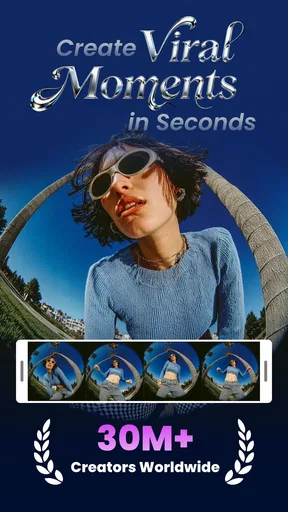
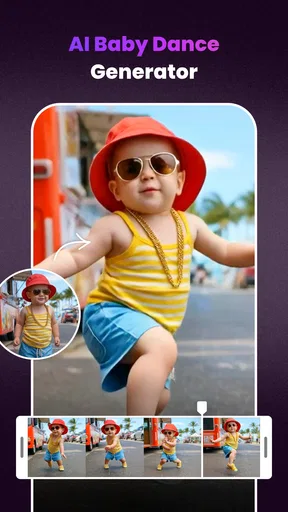
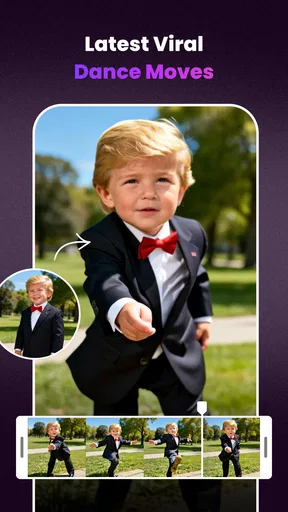
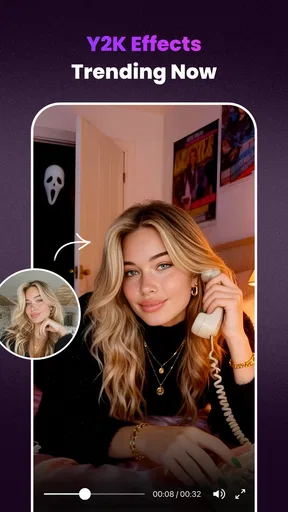
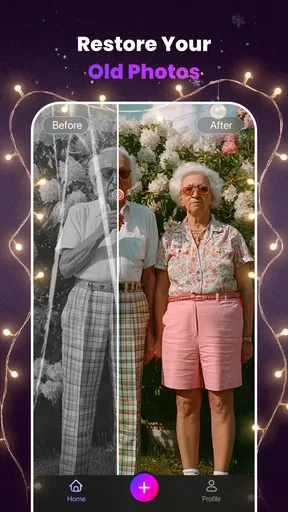
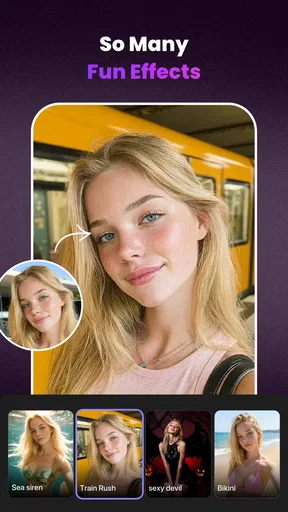
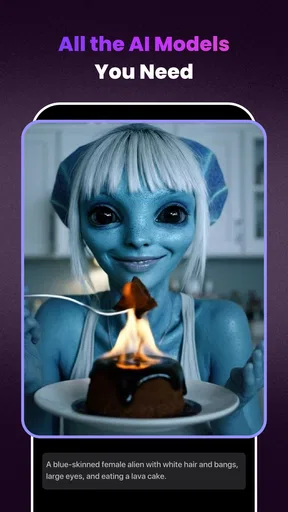
 Analysis by AppCompare
If you’re deciding whether an AI video app will suit your everyday editing habits, I’d start with a simple question: do you enjoy experimenting with a clip, or do you mainly want a quick, predictable trim? Clipfly - AI Baby Dance Video is aimed at the playful end of that spectrum. It’s an art-and-design app from AI Art Photo Editor | Everimaging Ltd., and its appeal is turning a short personal video into something more stylized rather than replacing a conventional editor for careful, frame-by-frame work.
What to expect from the first edit
I’d approach Clipfly with one short clip, not a whole camera roll. That gives you a low-stakes way to see how its AI-led effects fit your footage and whether the result feels charming or too artificial for your taste. The app’s broader toolkit includes video generation, filters, extension, motion transfer, and erasing, so it is more than a single-purpose baby-video novelty. Still, the best reason to try it is curiosity about changing the look or movement of a clip, not a need for precise professional control.
AI effects can take more time than tapping a basic filter because the app has to process a video rather than just alter a still image. I wouldn’t judge the experience by expecting every experiment to feel instantaneous. Keep your first source clip short, choose one treatment, and wait for that result before making more versions. This makes it easier to tell whether the delay comes from the effect itself or from trying to work with a longer, more demanding video.
A practical way to use the creative tools
For a family keepsake, I’d save the original clip before trying a transformation. Then I’d make one playful version for sharing and keep another edit restrained, with the subject still easy to recognize. This is a useful trade-off with AI video: the more dramatic the treatment, the more likely it is to compete with the moment you wanted to preserve. A filter or subtle extension may serve a memory better than a stack of effects, while a more imaginative transformation is better suited to a joke or a private family chat.
Motion transfer and video erasing also suggest different kinds of projects. If you are trying to give a still or existing clip a new visual feel, motion-based tools are worth exploring; if an unwanted element distracts from the subject, an erasing tool may be the more direct starting point. I’d test those tools on a copy and inspect the whole result, especially around moving edges. AI edits can look convincing at a glance yet show a distracting glitch when a person or object crosses the area being changed.
One everyday scenario is making a short birthday greeting from a child’s spontaneous dance. I’d pick a well-lit moment with the child clearly visible, try a single effect, and review the result with the sound on and off before sending it to relatives. If the transformation makes the face or movement feel less natural, I’d return to the source and use a lighter treatment. That extra check helps keep the joke warm rather than making the child hard to recognize.
Who will enjoy it, and who may prefer another editor
Clipfly makes the most sense for people who enjoy trying visual ideas without building every effect manually. It can be a fun choice for parents making occasional keepsakes, casual creators who want a more unusual look, or anyone curious about AI video tools. It is less suitable if you need exact cuts, detailed timeline editing, consistent color correction, or a dependable workflow for a polished client deliverable. A traditional mobile video editor is generally the better fit for those jobs because its strength is direct control rather than automated transformation.
Worth Reading Before You Choose

EA SPORTS FC Mobile 26 Is a Bigger Football Game, but It Takes Time

Flipboard Shows What News Apps Must Do Beyond the Feed

Switching to Android Auto Means Rethinking Your Driving Routine

Google Calendar Makes a Crowded Week Easier to Manage

Ludo King Makes the Most of the Minutes Between Plans

Baby Panda World Brings Quick Play to Modern Phones, but Its Game Library Feels Busy
Compared with a standard filter app, Clipfly has a broader ambition: it works with video changes that go beyond applying one color treatment. That wider scope is appealing, but it also means the output can be less predictable than a simple filter. If you want the same appearance across many clips, a conventional editor with repeatable manual settings may be easier. If you want to see what an AI treatment can do to one memorable moment, experimentation is part of the point.
Cost, access, and choosing your device
The app is free to download, with in-app purchases ranging from $4.99 to $279.99 per item. I’d explore the free experience before committing to any purchase and check the price shown for the specific item you are considering. The range is broad enough that it is worth being deliberate: decide what you want to make first, then see whether the available option fits that use rather than paying just to keep experimenting.
It is rated for Everyone, has an average rating of 4.1 from around 4,000 ratings, and has passed 100,000 installs. Those figures offer a little context about its audience, but they cannot tell you whether a particular AI result will suit your footage. The app was released on December 19, 2024, and version 1.1.16.58 supports Android 7.0 and later. I’d still leave comfortable free space on a phone before working with video; source files and exported edits can take room, and a crowded device can make any media workflow feel less convenient.
My experience with the creative workflow
First things first, downloading the app was a breeze. Available on both Android and iOS, Clipfly - AI Baby Dance Video sets itself up quickly, allowing you to dive right into the fun. The interface is clean and intuitive, which is a huge bonus when you're juggling a baby in one hand and your phone in the other.
The app prompts you to upload a video clip of your baby dancing. If you're like me and have a camera roll full of these, you'll appreciate how easy it is to select your favorite. The app supports various video formats, so you won’t need to worry about converting files before uploading.
The Magic of AI
Now, here’s where the magic happens. Clipfly uses its AI engine to analyze the video and automatically enhance it with delightful effects. The AI is quite impressive, recognizing the movements and timing the effects perfectly to match your baby’s moves. It’s almost like having a mini film crew at your disposal!
From colorful backgrounds to animated characters dancing alongside your baby, the options are plentiful. I found myself giggling as a tiny dinosaur popped up on the screen, grooving along with my little one. The AI also smartly adjusts the lighting and colors to make every frame pop.
Customization and Creativity
While the AI does a fantastic job, Clipfly doesn’t leave you out of the creative process. You can tweak the effects, add music, or even insert funny captions. The music library is diverse, featuring everything from classic lullabies to upbeat pop tunes, ensuring there’s something for every dance vibe.
If you're feeling adventurous, you can manually adjust effects or choose from pre-set themes. I particularly enjoyed the "Jungle Boogie" theme, which turned my living room into a wild adventure!
Sharing the Joy
Once you’ve added all the finishing touches, sharing your masterpiece is a cinch. The app allows direct sharing to social media platforms or saving to your device. I had my video up on Instagram within minutes, and the feedback was overwhelmingly positive. Family and friends couldn’t get enough of the creative flair Clipfly added to my baby’s dance video.
Clipfly also offers a community feature where you can upload your creations for others to see. It’s a wonderful way to connect with other parents and get inspired by their creativity.
Reliability in a short-video workflow
My advice is to treat each render as a small project rather than tapping through effects while doing something else. Keep the source clip available, make one change at a time, and watch the export from beginning to end before sharing it. That simple routine gives you a clear recovery path if a result looks odd: you can return to the untouched footage instead of trying to undo a chain of edits you no longer remember.
For a smoother session, choose footage where the main subject is easy to distinguish from the background. Busy scenes, dim rooms, or several people moving at once can make automated effects harder to assess, and a result that looks fine in a thumbnail may be less convincing in motion. I’d also avoid repeatedly rendering tiny variations unless I’m comparing a specific choice. Saving a shortlist of the two or three strongest versions is more useful than filling the phone with near-identical exports.
Small checks that make a real difference
Before opening an edit, I’d decide where it is going: a private message, a family album, or a public social post. That choice helps set the right level of polish and keeps the edit focused. For a private greeting, a funny transformation can be the whole point; for a keepsake you may want to revisit years later, a lighter touch usually lets the original expression and movement remain central.
It is also worth checking the final frame and the audio separately. An effect can look playful through most of a clip but leave an awkward ending, while music or captions may change the tone more than expected. I’d watch once for visual artifacts and once for the overall feeling, then save only the version I actually want to keep. If the output is for a child’s family group, I’d consider whether everyone shown is comfortable with it being shared beyond that group.
When performance becomes part of the decision
Video processing is naturally a heavier task than browsing filters for still photos, so I’d keep expectations modest when using older or nearly full devices. The minimum Android requirement is 7.0, but meeting that requirement does not by itself guarantee that every effect will feel equally quick on every phone. If a render takes longer than you expected, try a shorter source clip and close other demanding tasks before starting again; that is a sensible troubleshooting step, not a promise that every slowdown will disappear.
If the app closes or an export does not look right, I would reopen the project carefully, check whether the original clip is still accessible, and avoid deleting source footage until the finished file has been reviewed. For important memories, keeping a separate copy of the original is the safest habit. Clipfly is best approached as a creative layer over footage you already value, not as the only place where that footage exists.
People often wonder whether they need editing experience to get something worthwhile from it. I don’t think they do: the appeal is experimenting with an automated look and making a few deliberate choices, rather than mastering a complex timeline. The more useful question is whether you enjoy reviewing alternatives. If you want one fixed result with no trial and error, a basic editor may be less frustrating.
Another practical question is whether it suits regular, high-volume editing. I’d reserve it for selected clips rather than treating it as a complete production suite. Its AI-oriented tools are most compelling when you have a particular transformation in mind; for trimming many videos, arranging several scenes, or maintaining identical edits across a batch, a conventional editor is likely to feel more direct and predictable.
Overall, the app’s strongest use is turning a short, personal moment into a playful experiment without requiring me to construct every visual change by hand. Its broad creative approach can produce a more distinctive result than a basic filter, but it asks you to judge the output rather than assume the automation has made the perfect choice. For casual family clips and curious creators, that is a worthwhile trade. For exacting edits, consistent professional work, or phones with very little room to spare, I would choose a more controlled workflow.
Final Thoughts
Overall, Clipfly - AI Baby Dance Video is a delightful app that brings a sprinkle of magic to your baby’s dance videos. It’s user-friendly, packed with fun features, and gives you the tools to make your clips truly unique. Whether you’re a seasoned parent or a newbie, this app is a fantastic way to capture and enhance those fleeting moments of joy.
So, if you’re ready to turn your living room dance-offs into epic productions, give Clipfly a try. It’s not just an app; it’s a gateway to creating cherished memories you’ll want to watch over and over again.
Pros
- Intuitive interface for easy video creation.
- Wide selection of music tracks to choose from.
- Quick export options for social sharing.
- AI enhances video quality automatically.
- No watermark on exported videos.
Cons
- Limited customization in video editing.
- Requires internet for full functionality.
- Some features locked behind paywall.
- Occasional lag on older devices.
- Ads can be intrusive at times.
FAQs for Clipfly - AI Baby Dance Video
What is Clipfly - AI Baby Dance Video?
Clipfly - AI Baby Dance Video is an innovative app that uses artificial intelligence to generate fun and engaging dance videos featuring your baby. By analyzing photos or videos of your child, the app creates adorable dance clips that can be shared with friends and family. It's a delightful way to capture and celebrate precious moments.
How easy is it to use Clipfly - AI Baby Dance Video?
The app is designed with user-friendliness in mind. Its intuitive interface allows you to easily upload photos or videos of your baby. With just a few taps, Clipfly’s AI processes the content and generates a customized dance video. No technical expertise is required, making it accessible for all parents.
What features does Clipfly - AI Baby Dance Video offer?
Clipfly offers a variety of features including multiple dance themes, custom music options, and editing tools to personalize your baby's dance video. It also provides social media integration for easy sharing. The app is regularly updated with new themes and features to keep the content fresh and engaging.
Is Clipfly - AI Baby Dance Video safe to use?
Yes, Clipfly prioritizes user privacy and safety. The app employs robust security measures to protect your data. Your photos and videos are processed securely, and personal information is not shared without consent. Always ensure to read the privacy policy for more detailed information on data handling.
Are there any costs associated with Clipfly - AI Baby Dance Video?
Clipfly offers a free version with basic features, but also provides in-app purchases for premium themes and additional functionalities. These optional upgrades enhance the experience with more creative possibilities. Users can enjoy the core features without cost, making it flexible for different needs and budgets.


